How to Fix Read-Only USB Flash Drive and Enable File Copying
- Mar 22, 2025
- 2 min read
Updated: Apr 23, 2025

Have you ever put off copying your files onto a USB flash drive until the last minute before a meeting? It’s all good if they transfer quickly, but if you’re in a hurry and the process gets stuck, it can be a real headache.
One reason this happens is that your drive is set to read-only mode, which means you won’t be able to copy anything onto it unless you change that. Here’s how to fix it.
What to Do...
Method 1: Look for a Physical Switch
Some flash drives have a tiny switch that locks them. If yours has one, make sure it’s switched off. Try copying files again. If that doesn’t do the trick, move on to the next step.
Method 2: Use Diskpart
Open Windows Search and type Run, or press Windows + R on your keyboard.
Type diskpart and press OK.

Type list disk and press Enter. This will show a list of drives on your computer. Your USB drive should be the last one.
Type select disk # (replace # with the number of your USB drive).

Type attributes disk and press Enter. If it says Read-Only: Yes, the drive is locked.
Type attributes disk clear readonly and press Enter to unlock it.
Type attributes disk again to see if it worked. If it says Read-Only: No, you’re good to go.
Method 3: Change a Setting in the Registry
If the steps above don’t work, try adjusting a setting in the Windows registry:
Plug your flash drive into your computer.
Press Windows + R, type regedit, and hit OK.
Go to HKEY_LOCAL_MACHINE\SYSTEM\CurrentControlSet\Control\StorageDevicePolicies.
Click WriteProtect and set the Value Data to 0, then press OK.
Try copying a file to your USB drive.

Tip: If StorageDevicePolicies isn’t there, you’ll need to create it:
Right-click Control, select New > Key, and name it StorageDevicePolicies.
Right-click in the blank space on the right, select New > DWORD (32-bit) Value, and name it WriteProtect.
Open it, set the value to 0, and press OK.
Method 4: Use Command Prompt
You can also remove read-only mode using the Command Prompt:
Open Windows Search, type cmd, then right-click Command Prompt and select Run as Administrator.
Type diskpart and press Enter.
Type list disk and press Enter. Look for your flash drive in the list.
Type select disk # (replace # with your drive’s number).
Type attributes disk clear readonly and press Enter.
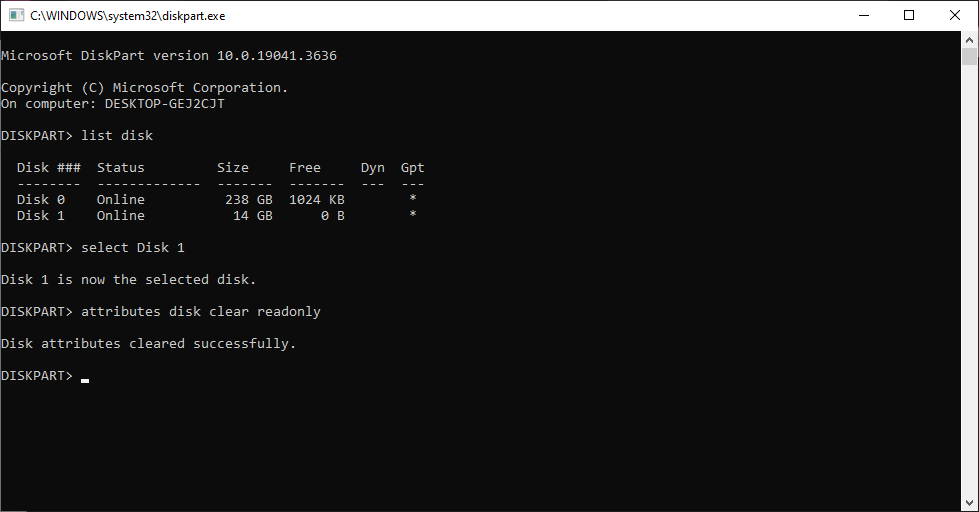
If one of these steps worked, your flash drive should now let you save files again.
Why Does Read-Only Mode Exist?
While it can be annoying, read-only mode is actually useful:
Prevents accidental file loss: Stops you (or malware) from deleting or messing up your files.
Keeps your data safe: If you share the USB drive, others can’t change or copy your files without your permission.
Locks files in place: If multiple people use the same drive, read-only mode makes sure nothing gets deleted or changed.
Now that your flash drive is working again, you won’t have to scramble at the last minute before a meeting!
